
Reports Page Overview
The Report page allows you to view, create, and schedule reports. At the top, a quick menu provides easy access to these actions. Below, you can explore existing reports or create a new one.

The Recents tab provides quick access to recently viewed reports. The Favorites tab stores reports you’ve marked as favorites. The Schedules tab allows you to set reports to run automatically on a regular basis.
At the bottom of the menu, a folder view offers another way to navigate and locate reports efficiently.
Viewing a Report
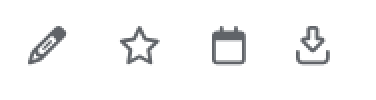
To view an existing report, simply click on it to open a new window displaying the full report. From there, you can edit, favorite, schedule, or download in the upper right corner.
You can also use the calendar control filter to adjust the report’s time period. Click on the selected date range in the upper left, next to Filters, to open the calendar menu. Here, you can choose a different time period or a range of periods for the report’s data.
Calendar Controls
To adjust the period, select week, month, quarter, or year. To choose a date range, first click on the starting period, then the ending period, and the full range will be selected automatically. Finally, click Apply Date Ranges in the bottom corner to confirm your selection, and the report will refresh automatically.

Setting a Favorite
To save a report as a favorite, open the Edit Page by clicking the pencil icon in the top right corner. Once in edit mode, click the star icon in the top right to mark the report as a favorite—the star will fill in once selected.

After marking it as a favorite, you can quickly access the report from the Favorites tab on the home page.
Sharing a Report

Select a user or group from the list on the left and click the right-facing arrow to grant access. To remove access, select a user from the list on the right and click the left-facing arrow.

You can also specify which users or groups can edit or share the chart. Click Save in the bottom right to apply your changes.
Downloading a Report
The download icon lets you save the report’s data to your computer.

By default, the file is downloaded as a .csv, but you can adjust the format in your preferences.
Comments
The comments icon allows you to view or leave comments on the chart for other users.

No Comments