
Configuring Links for the Zone Settings
In the settings, you can add links for each page- Analyze, Discover, Report, and Present- to appear in the header.
To get started, click on the gear icon in the top-right corner to open the Setup page. Under Settings, select Zone Settings. This will display all available configurable options. The settings to focus on are:
- Analyze Help Links 1 and 2
- Discover Help Links 1 and 2
- Report Help Links 1 and 2
- Present Help Links 1 and 2
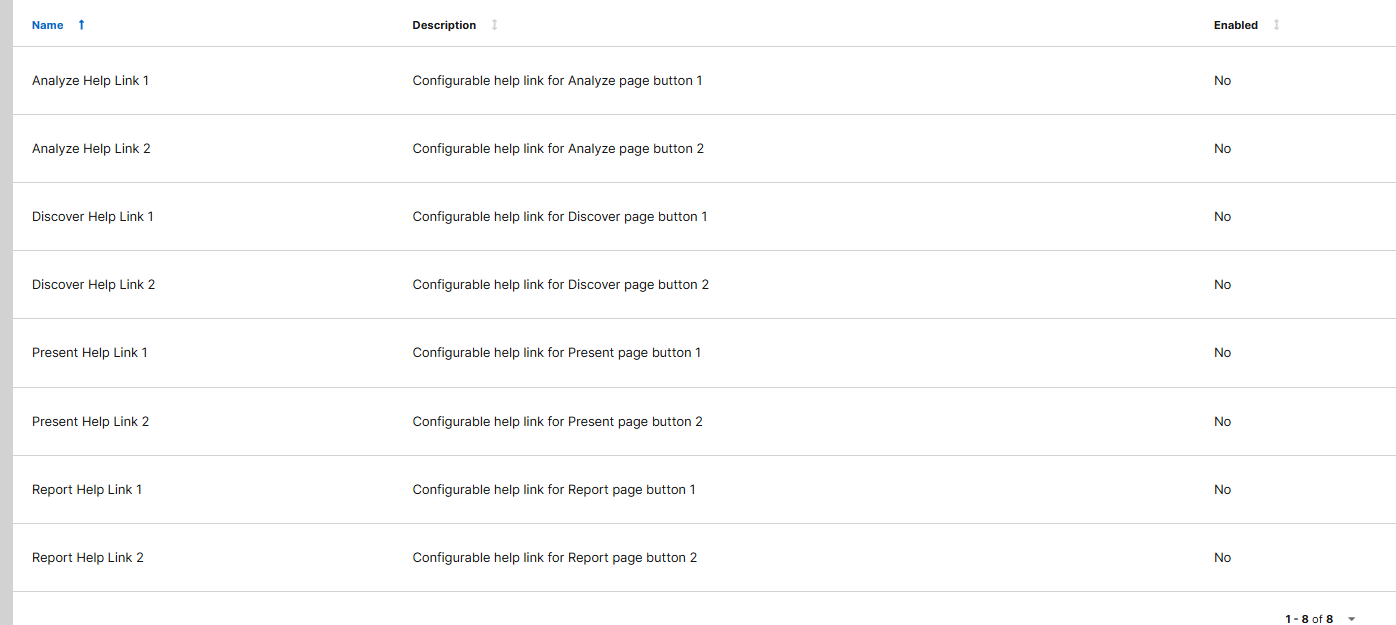
Click any of these to open their edit window. In the window, you’ll see fields for Name, Description, Value, and an Enabled checkbox.
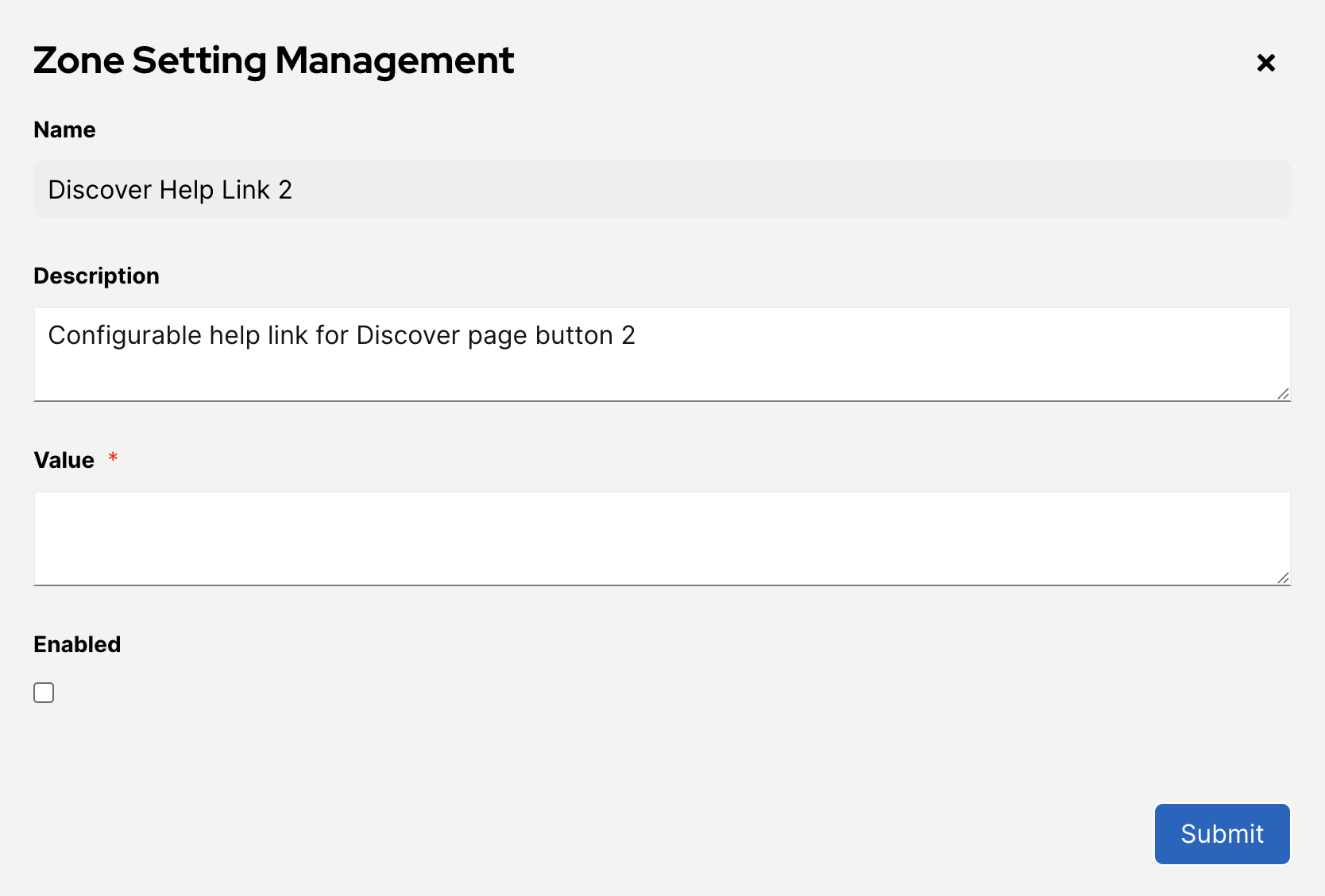
The Name and Description are used to define the zone setting internally and do not affect what appears in the header.
The Value section is where you add the title, description, and link for the link you are adding, using the following format:
{
"help_title": "Insert Title Text",
"help_description": "Insert Description Text",
"help_url": "Insert url Link"
}
So, for example, it could look like this:
{
"help_title": "Discover AI*Generated Insights",
"help_description": "Get help on using AI to analyze your data",
"help_url": "https://docs.zeroedin-dev.
}
Finally, to add this to the corresponding page header, check the Enabled checkbox. Then, click Submit in the bottom-right corner to save your changes.
No Comments