
Navigating Presentations
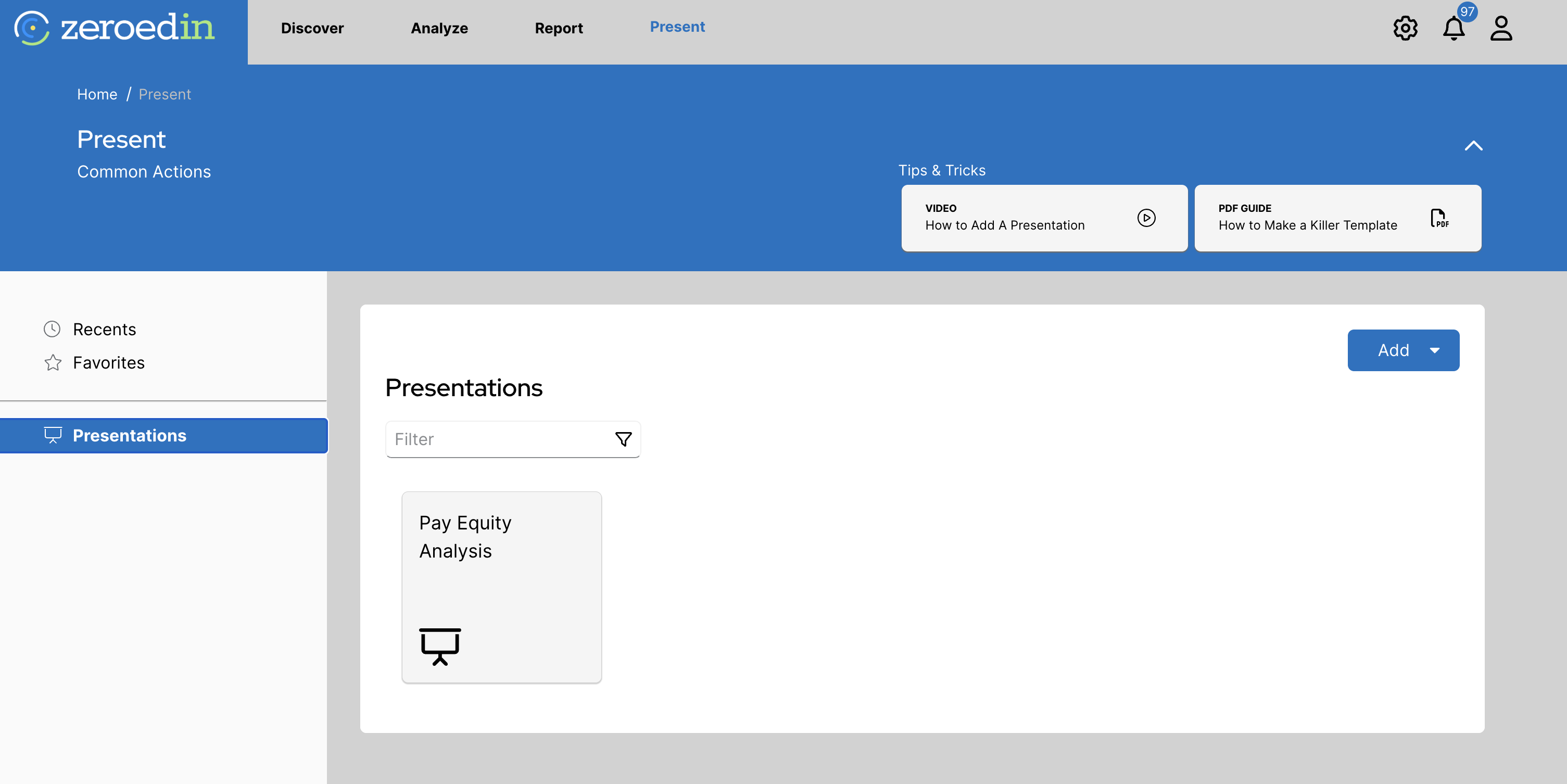
The Present tab allows you to create and view slideshow presentations by adding charts from the system. You can browse existing presentations using the left-side menu, which includes a Recents tab for quick access and a Favorites tab for presentations you’ve marked as favorites.

On the main page, you can see all of the existing presentations.
Creating a New Presentation
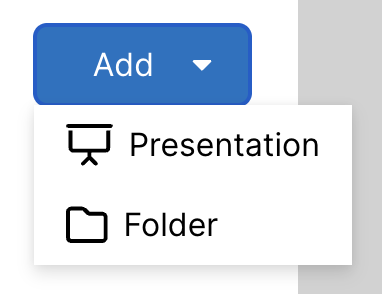
To create a new presentation, select Add and then Presentation.
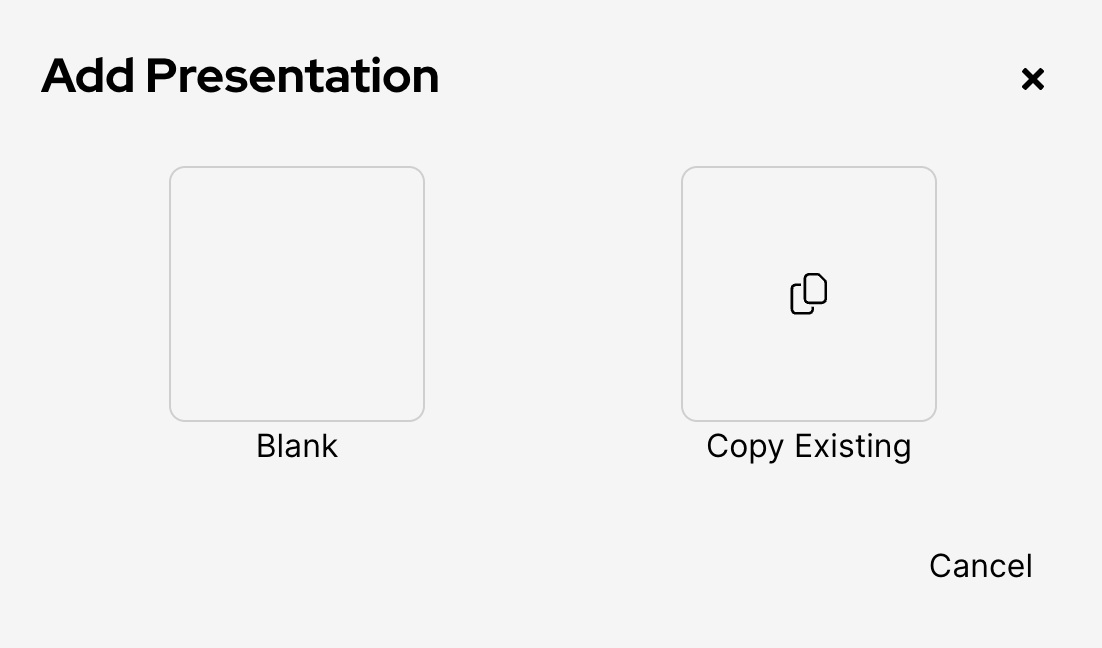
From here you are prompted to either create a blank presentation or copy an existing presentation. Any changes made to the copy will not impact the original.
Building a Presentation
Similar to the dashboards, you can select and drag charts, tables, text files, and images from the right side navigation menu onto the presentation grid. To add them, simply click and drag the widget onto the grid
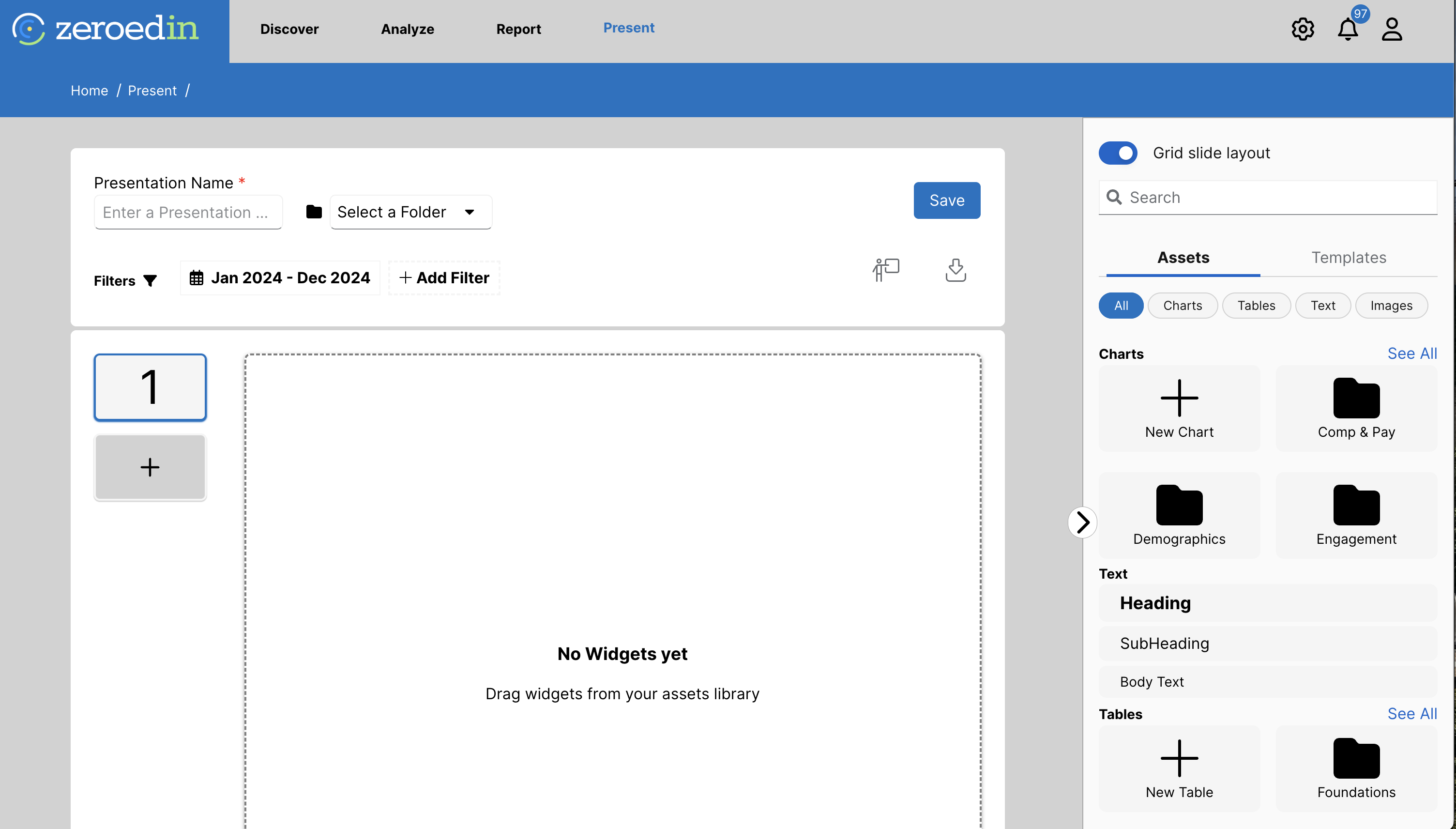
To move a widget, click anywhere on the widget and drag it to the desired spot.
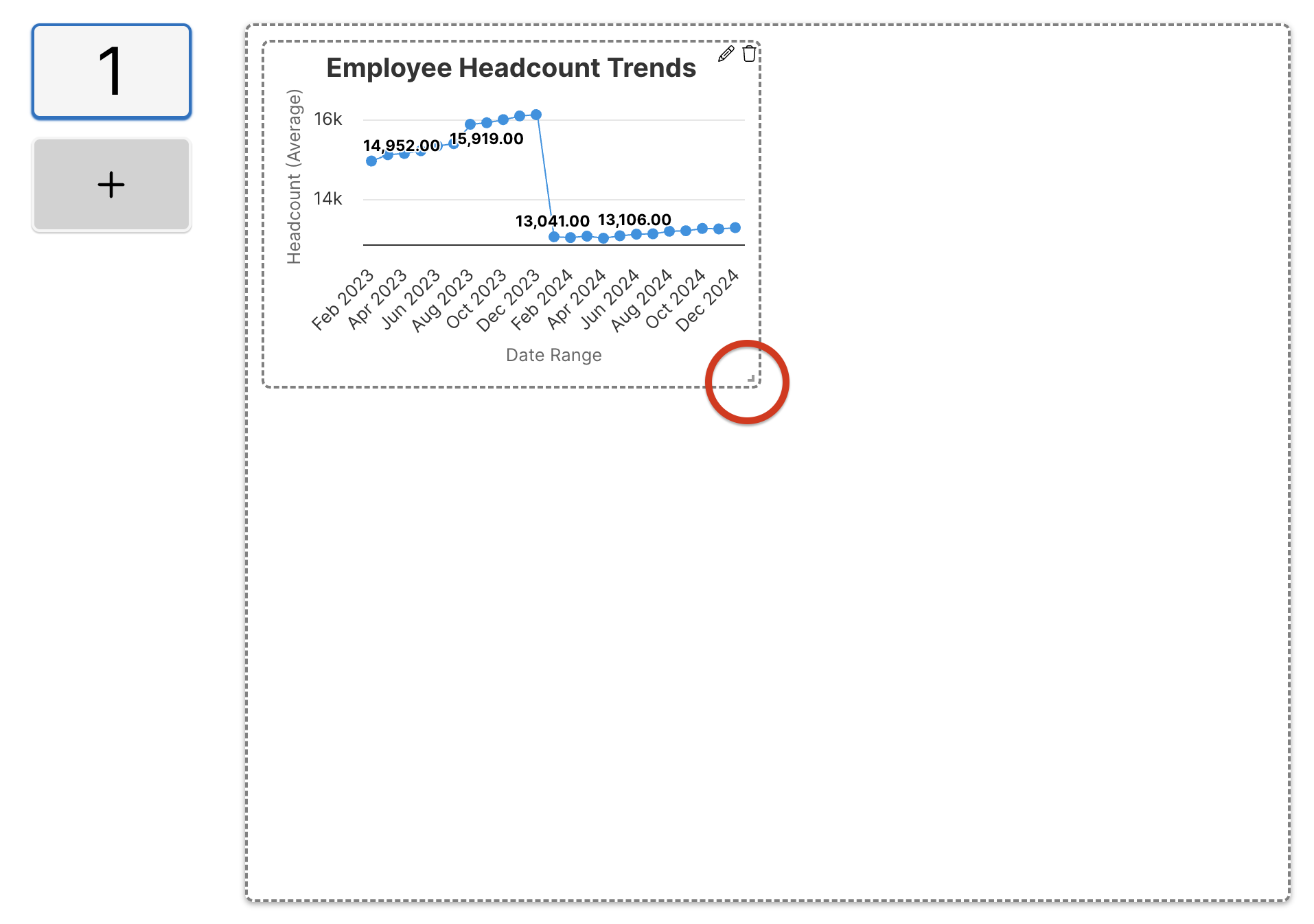
To resize a widget after adding a widget to the presentation, you can select the bottom left corner and drag it to the selected size.
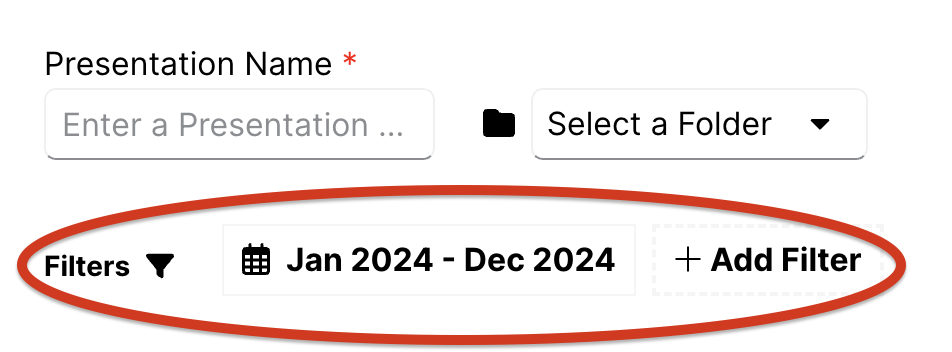
You can also adjust the calendar control and apply global filters to the data being displayed on the presentation. To adjust these, select the time period or + Add Filter in the top left corner.
Presenting and Downloading
You can present your slideshow from within the ZeroedIn platform. Select the present icon in the upper right corner to open up a new tab and display the presentation.
You can also download your presentation as a Powerpoint. To do so, select the download icon in the upper right corner.
No Comments