
Navigating Charts
Click on a chart in the main Analyze page to open it and explore its details. A new page will appear with the chart and relevant information. In the top left, you’ll see the chart’s name and location.
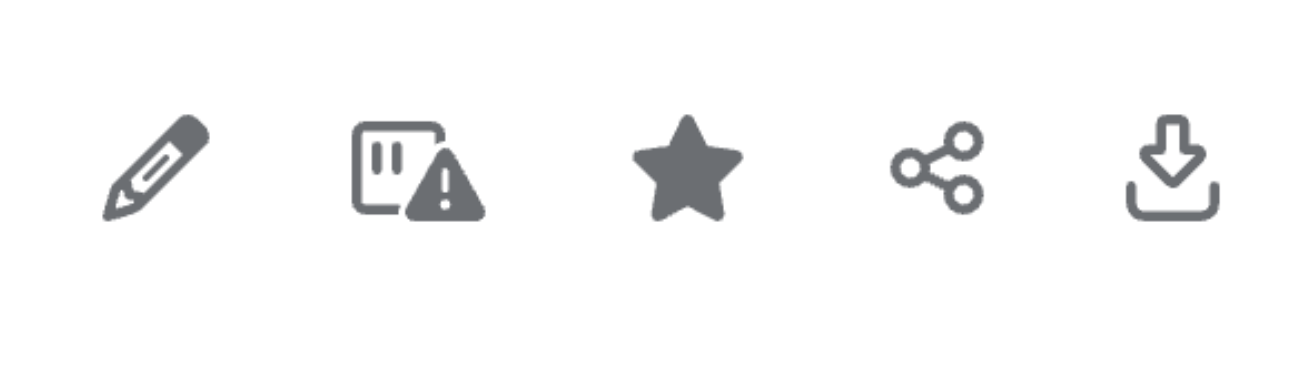
In the top right, a menu provides various options. The pencil icon enables edit mode, allowing you to customize the graph. The alert icon lets you create alerts.
Alerts
When creating an alert, a menu will appear where you can enter a name for the alert. You can select a key measure and define an operator, such as meets, exceeds, or drops below. You will also need to specify a threshold value. The alert color can be customized using preexisting options or a custom hex code.
Additionally, you can choose the time period for the alert, whether it be a year, quarter, month, week, or day. You can define the monitoring window in days and add specific actions to be notified about if the alert is triggered. If you want to receive notifications via email, you can enable the “Notify via email” option. To set the alert, click the Submit button at the bottom left.


Setting a Favorite
The star icon allows you to mark a chart as a favorite. Click the star to set it as a favorite, and it will become filled in. Once marked, you can easily access the chart from the Favorites tab on the home page.
Sharing a Chart
You can also specify which users or groups can edit or share the report. Click Save in the bottom right to apply your changes.

Downloading a Chart
The download icon lets you save the chart’s data to your computer as a .csv file.
No Comments