Alerts
Navigation
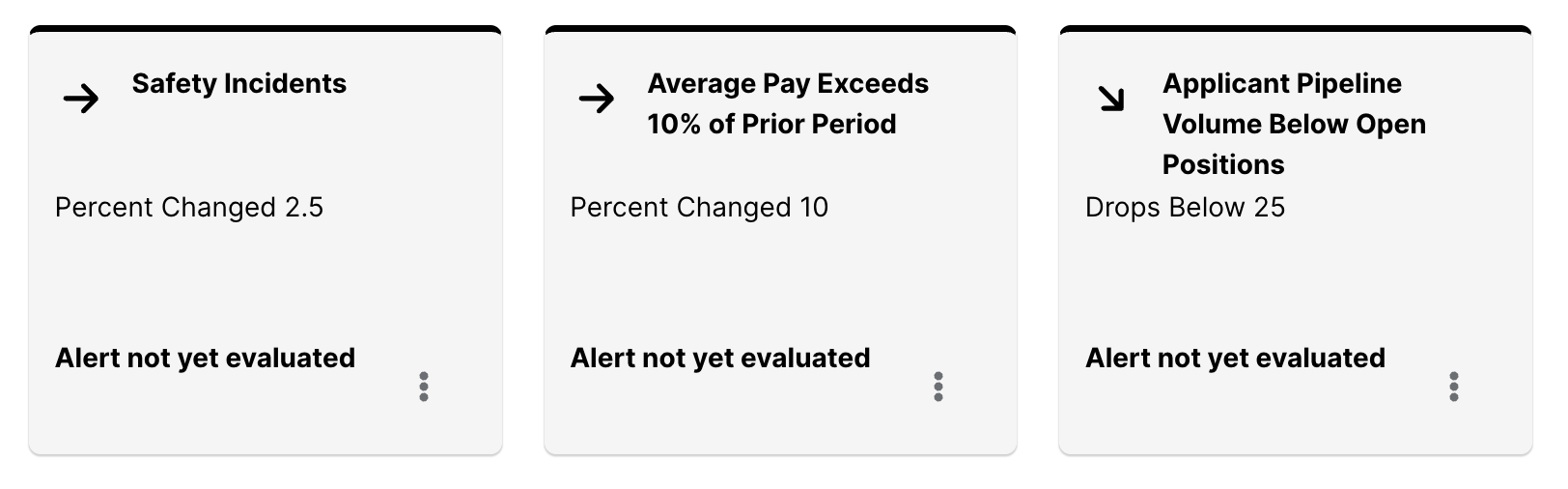
WhenAt creatingthe bottom of the main page, you’ll find all your active alerts. These alerts notify you about specific data events, such as reaching a certain threshold. You can also set up email notifications to stay informed about important updates.
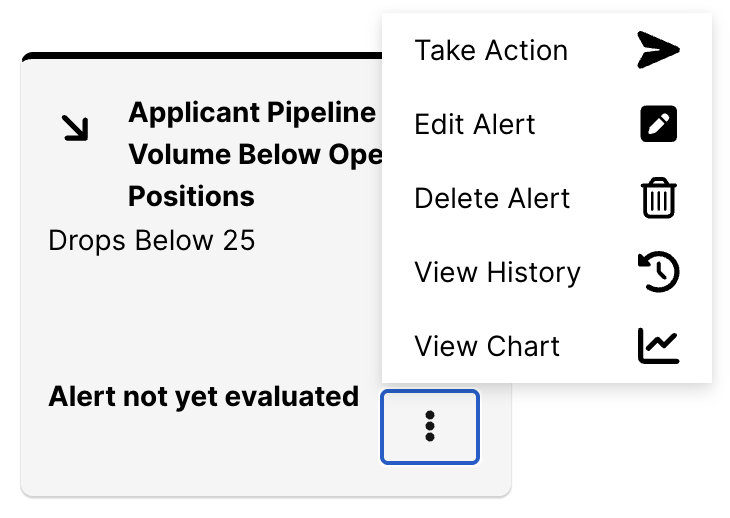
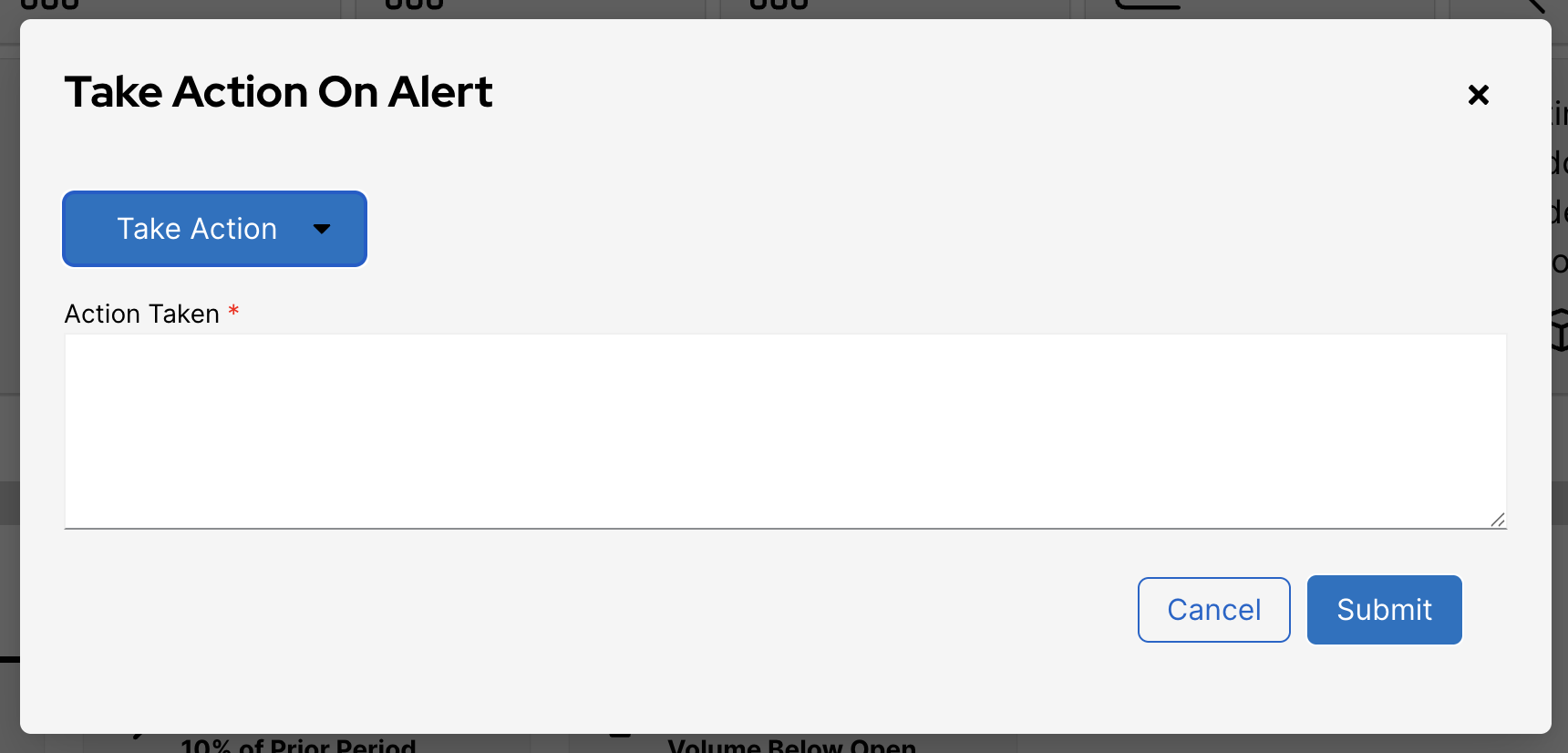
Clicking the three dots in the bottom right corner of an alert,alert opens a menu willwith appearseveral options: Take Action, Edit Alert, Delete Alert, View History, and View Chart.
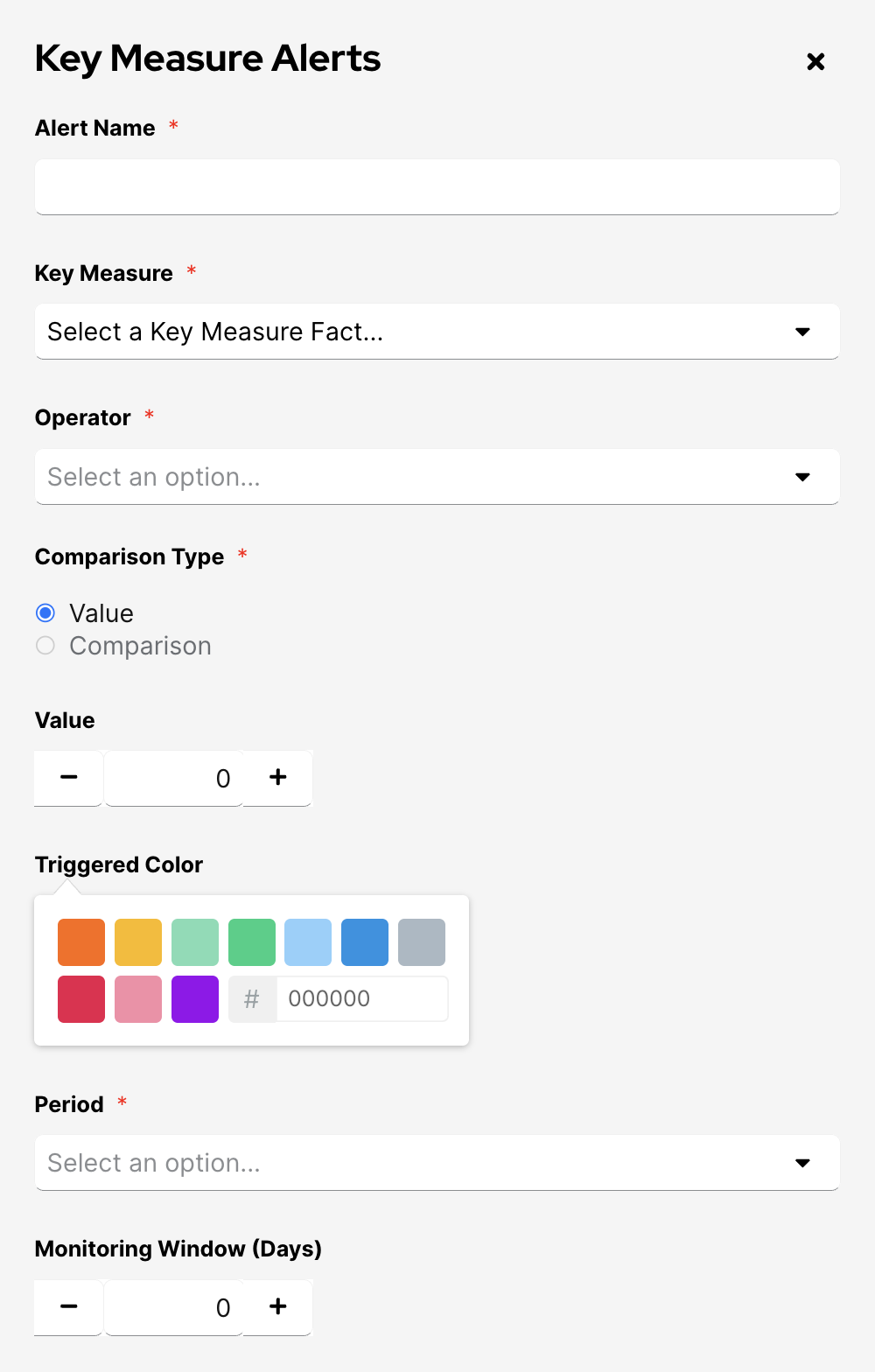
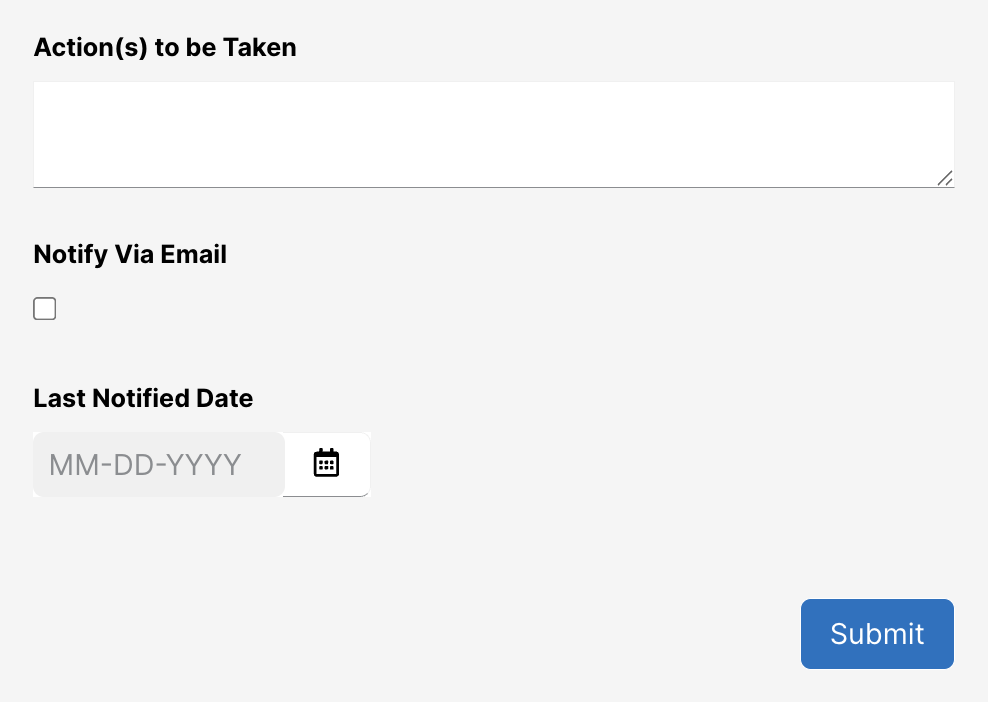
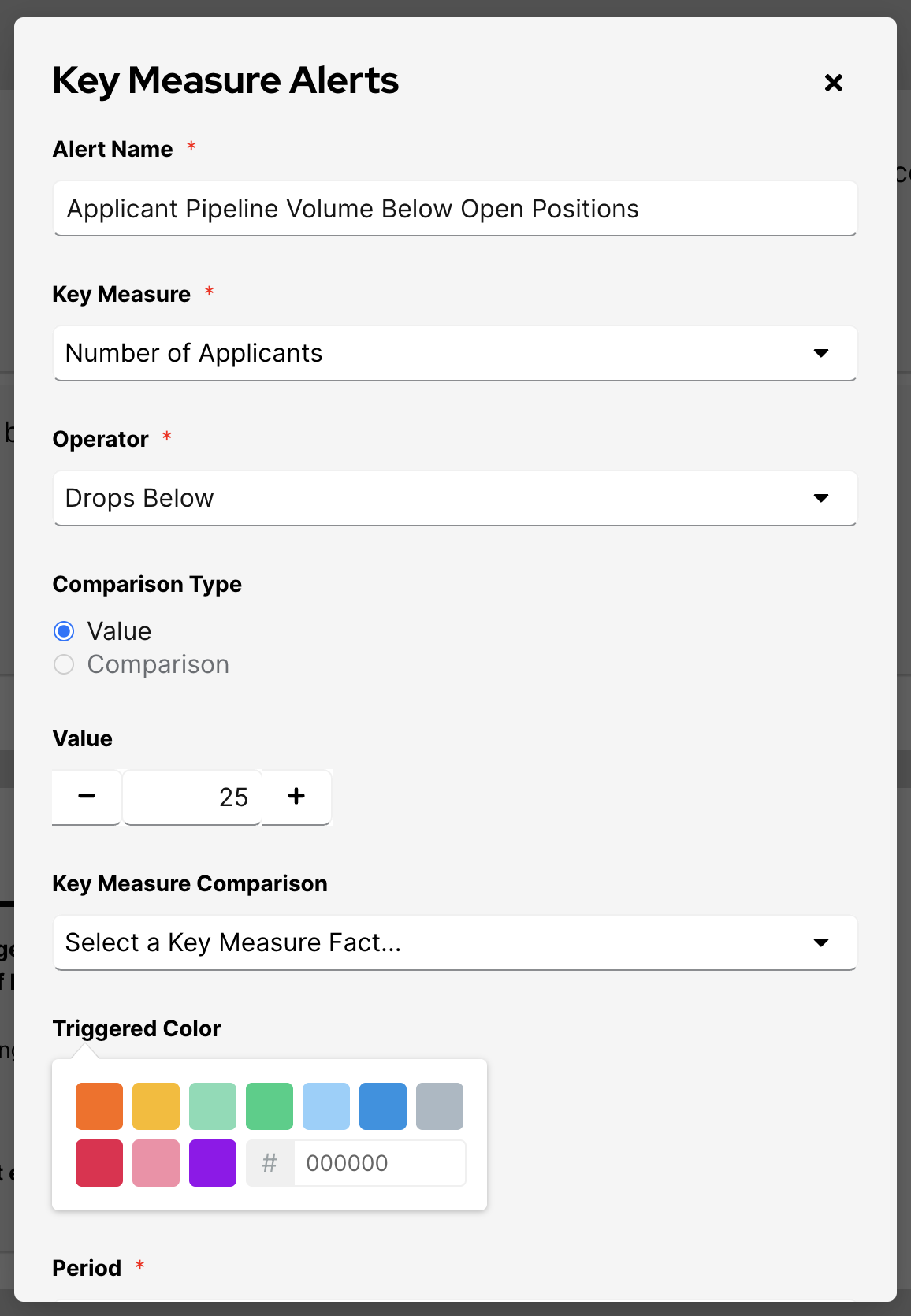
Clicking “Take Action” opens a window where you can enter a name for the alert. You can select a key measure and define an operator, such as meets, exceeds, or drops below. You will also need to specify a threshold value. The alert color can be customized using preexisting options orsend a custom hex code. action.
Additionally,"Edit Alert" will open the alert customization window.
Clicking “View History” opens a window displaying the alert’s history.
Clicking “View Chart” takes you can chooseto the timeAnalyze periodtab, forshowing the alert, whether it be a year, quarter, month, week, or day. You can define the monitoring window in days and add specific actions to be notified about ifchart the alert is triggered.based Ifon.
Creating a New Alert
To create an alert, go to receiveedit notificationsmode viaof email,a chart and select the alert icon in the top right corner.
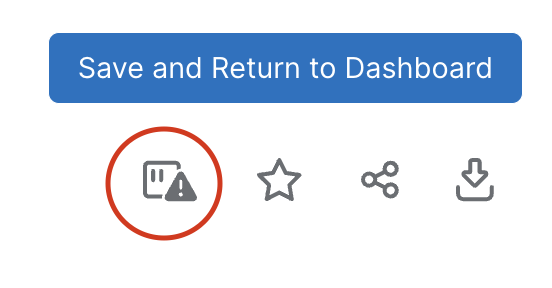
This will open a new window where you can enableset up the “Notifyalert viabased email” option. To seton the alert,key clickmeasures used in the Submitchart. button at the bottom left.